
Debug View
Overview
The Debug View module offers a quick way to test room loading using a Debug Overlay view, without writing any code. It allows loading any room in the project at the mouse coordinates, with fully customizable parameters.
Setup
You can enable Debug View by setting the ROOMLOADER_DEBUG_VIEW_ENABLED config macro to true.
If ROOMLOADER_DEBUG_VIEW_START_VISIBLE is also set to true, the Debug View will appear automatically when the game starts. Otherwise, you can open the Debug Overlay by calling show_debug_overlay(true);, then navigate to the Views menu in the top bar and select the RoomLoader Debug view. 
Once open, you will see this window on your screen. 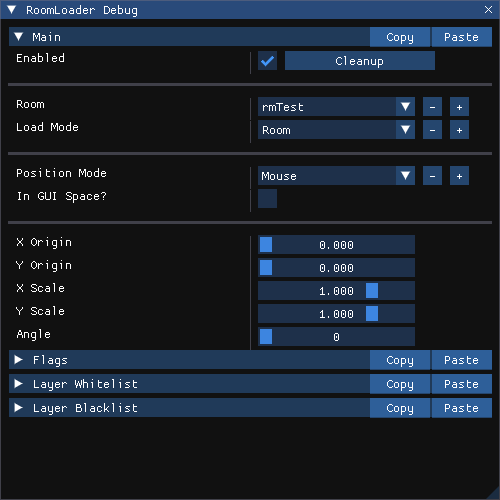
Now that the Debug View is enabled, you can start loading rooms at the mouse coordinates by pressing ROOMLOADER_DEBUG_VIEW_LOAD_KEY. You can also pick which room to load and configure loading parameters, that's all described in the Controls section below.
Controls
- The Enabled checkbox lets you control whether room loading is active when you press the designated key. If unchecked, pressing ROOMLOADER_DEBUG_VIEW_LOAD_KEY will not load rooms. This toggle is useful for temporarily disabling room loading, since GameMaker doesn't provide a built-in way to detect if a Debug Overlay view is open.
WARNING
When left enabled, pressing ROOMLOADER_DEBUG_VIEW_LOAD_KEY will trigger loading even when the view is closed.
- The Cleanup button unloads all rooms, instances and tilemaps that were previously loaded via the Debug View.
- The Room dropdown allows you to select which room to load. The list of rooms shown is determined by the ROOMLOADER_DEBUG_VIEW_ROOMS config macro. If this macro is set to Undefined, all rooms in your project will be available for selection. Otherwise, only the rooms specified in the macro will appear.
Load Mode
The Load Mode dropdown lets you choose what to load: Full Rooms, Instances, or Tilemaps.
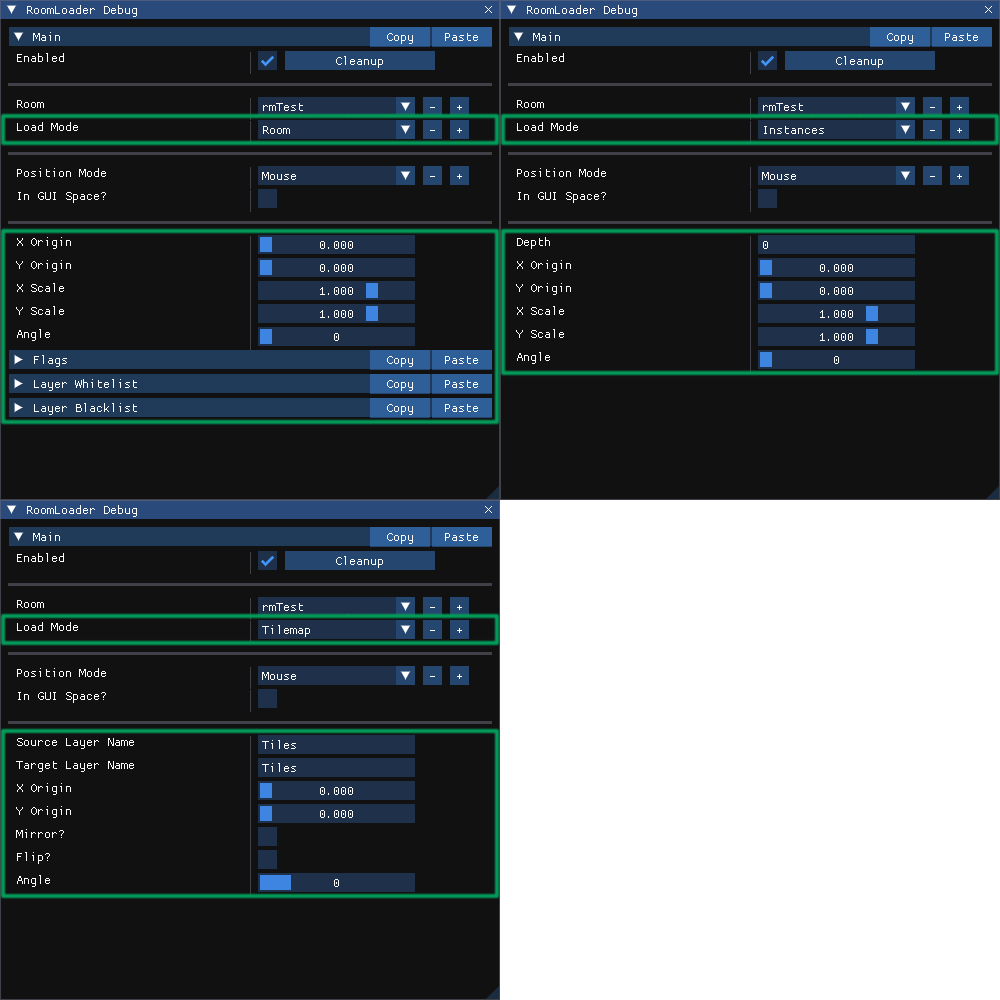
- Room loads Full Rooms, with controls for Origin, Scaling, Rotation, Flags for Asset Type Filtering and Layer Whitelist & Blacklist for Layer Name Filtering.
- Instances loads Instances, with controls for Depth, Origin, Scaling, Rotation.
- Tilemap loads Tilemaps, with controls for Source Layer Name, Target Layer Name (must exist in the current room), Origin, Mirroring, Flipping, and Rotation.
Position Mode
The Position Mode dropdown lets you choose where to load things - at the mouse position, at custom coordinates, at random, or using custom coordinate getters.
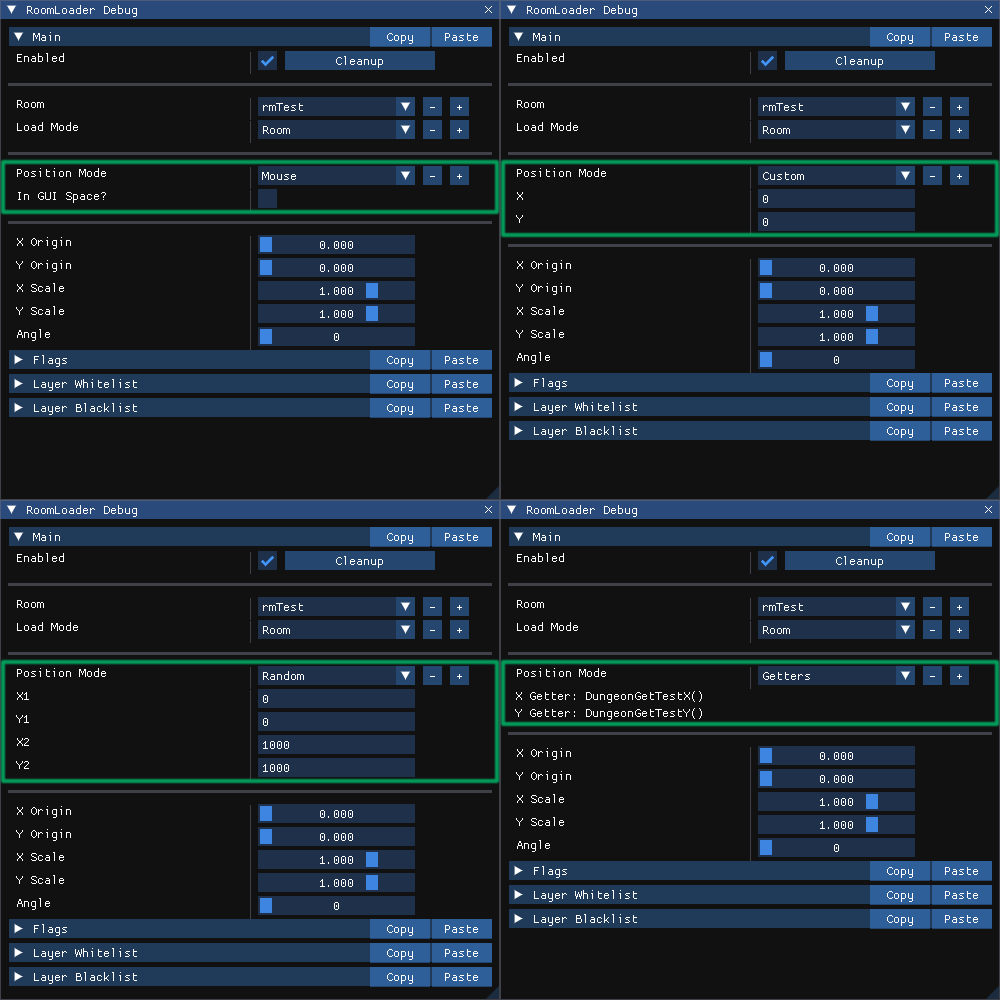
- Mouse loads at the mouse position, with controls over whether to load in room space using
mouse_xandmouse_y, or in GUI space usingdevice_mouse_x_to_gui(0)anddevice_mouse_y_to_gui(0). - Custom loads at the specified X and Y coordinates.
- Random loads at a random position withing the specified X1, Y1, X2, and Y2 area.
- Getters loads at coordinates returned by the ROOMLOADER_DEBUG_VIEW_GET_X & ROOMLOADER_DEBUG_VIEW_GET_Y getters. If not defined, both default to
0.